When someone wants to play tonight, they don't go to your website first — they Google your club or open Google Maps. That little profile card, with your rating, hours, and phone number, is the real front door to your business. The question is what happens next: do they have to call during opening hours and hope someone picks up, or can they book a table in ten seconds, right there?
Adding a "Book a table" link to your Google Business Profile turns that profile into a booking channel. It points anyone who finds you on Google straight to your ClubSystem booking page, with live availability — no phone call, no waiting, no missed reservation.
What it looks like
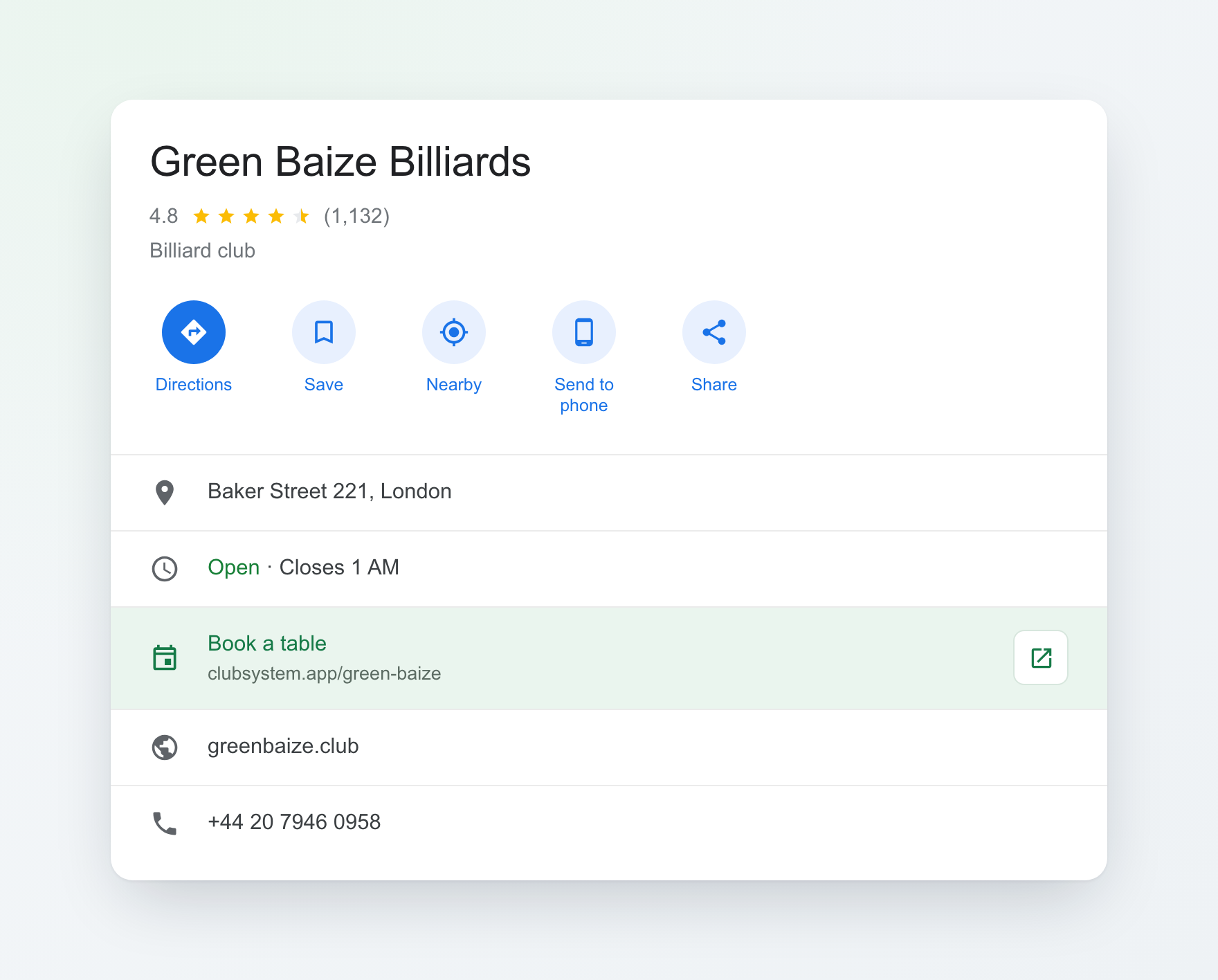
Once it's set up, a booking link shows up alongside your address and opening hours in both Google Maps and Google Search. A customer taps it and lands on your live booking page:
Why it's worth two minutes of setup
- You capture intent at the exact moment it happens. People search for a club when they want to play — meeting that with a booking button beats sending them off to find your phone number.
- It works after hours. Half of all bookings happen when no one is at the desk to answer the phone. A link never clocks off.
- Fewer interruptions for your staff. Every self-served booking is one less call during a busy evening.
- It's free. Google doesn't charge for the link, and your ClubSystem booking page is already live.
How to add the link
You'll need to be the verified owner or a manager of the Google Business Profile.
- Open your Google Business Profile. Search your club's name on Google while signed in, or go to business.google.com, and choose Edit profile.
- Find the Bookings section. Look for Bookings → Links to your online booking tools, then select Add a link (or edit an existing one).
- Paste your ClubSystem booking URL — for example
clubsystem.app/your-club— and save. - Wait a day or two. Google reviews the link, then shows it to everyone who views your profile. No extra fees, no contract.
Want the exact clicks with Google's own screenshots? See Google's step-by-step guide.
A couple of honest caveats
Google's self-serve booking-link field has historically rolled out to some business categories before others, so depending on how your club is categorized you may or may not see the Bookings option yet. If you don't, it's worth checking back — Google keeps widening it.
There's also a deeper route: Google's Reserve with Google / Actions Center partner program, where an approved booking platform feeds links (and the prominent blue "Reserve" button) to all of its clubs automatically. That's a bigger integration than a single link, and it's something we're looking at on the ClubSystem side. For now, the manual link above is the fastest way to get a booking button on your profile today.
Not on ClubSystem yet?
The whole point of a "Book a table" link is to send people to a booking page that actually shows live availability and confirms by SMS. That's exactly what ClubSystem gives every billiard club — and you can have your own booking page running in minutes.
Start a free trial